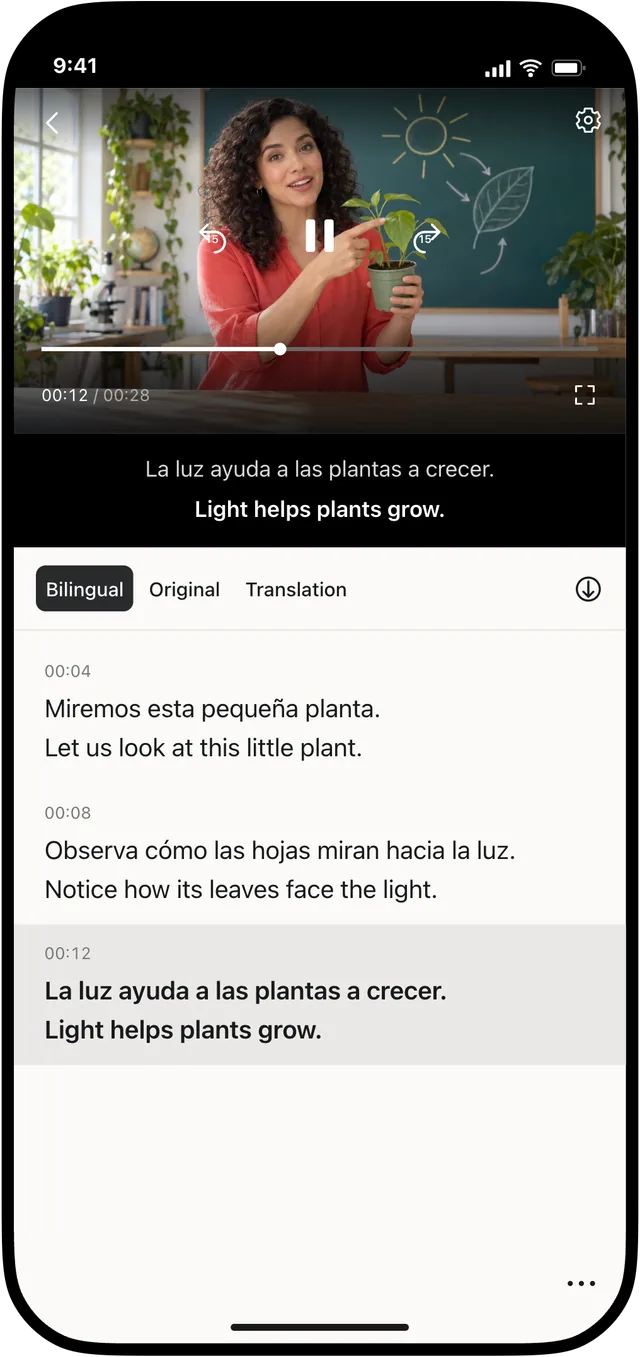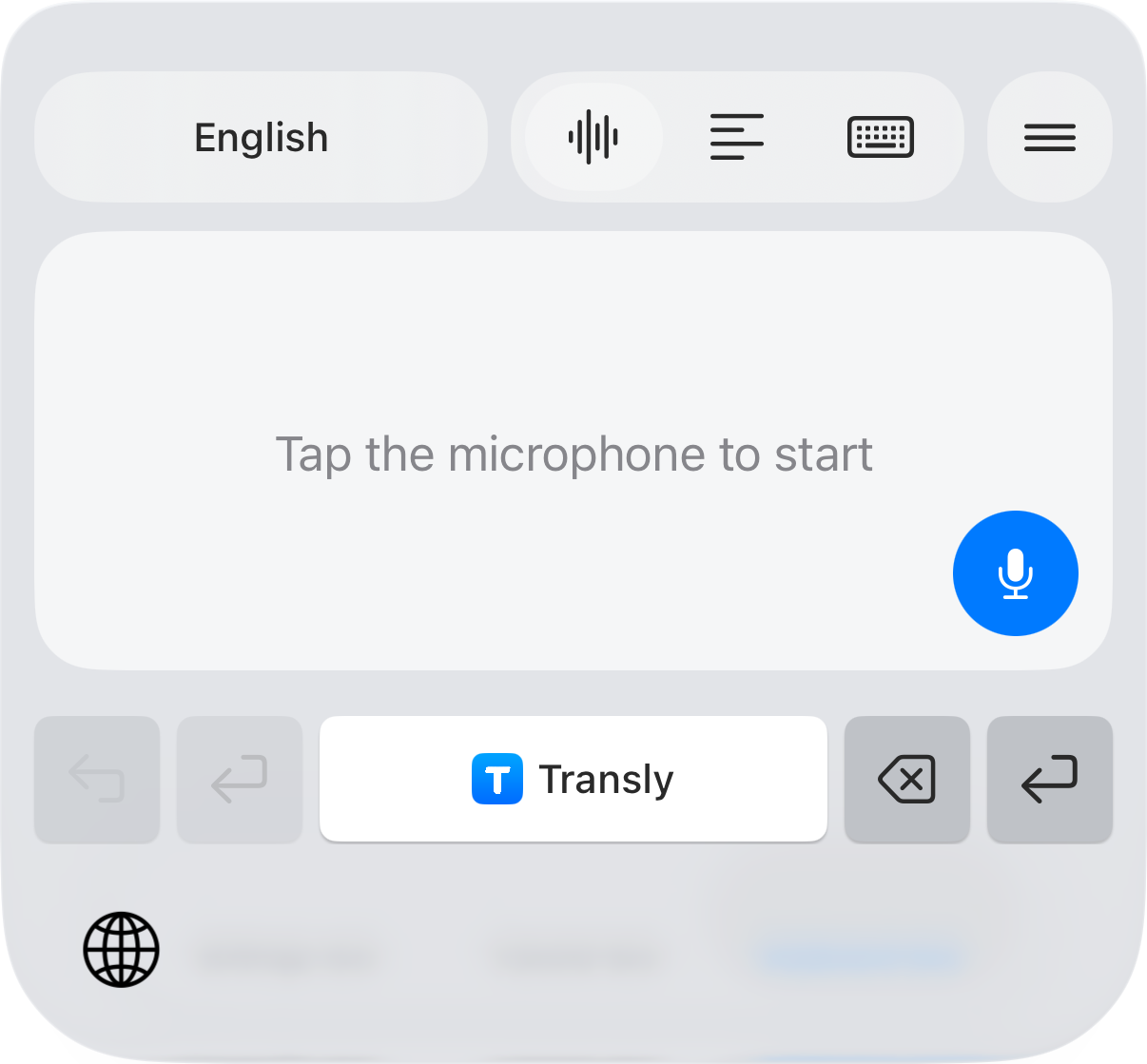
Transly brings together tools for communicating across languages and working with translated video. The best starting point is the result you want: a message you can send, a conversation you can follow, or a video with subtitles you can edit and keep.
Start with the task
| What you want to do | Where to start |
|---|---|
| Speak a reply and insert its translation into an iPhone message | Transly's translation keyboard |
| Understand a received message | Copy it into the Transly keyboard's reading feature |
| Follow a spoken conversation or supported audio from another app | Transly's conversation or cross-app audio features |
| Translate a local video and work on its subtitles | Video Translator by Transly |
| Correct subtitle wording, adjust timing and export subtitles or a subtitled video | Video Translator by Transly |
Transly for everyday communication
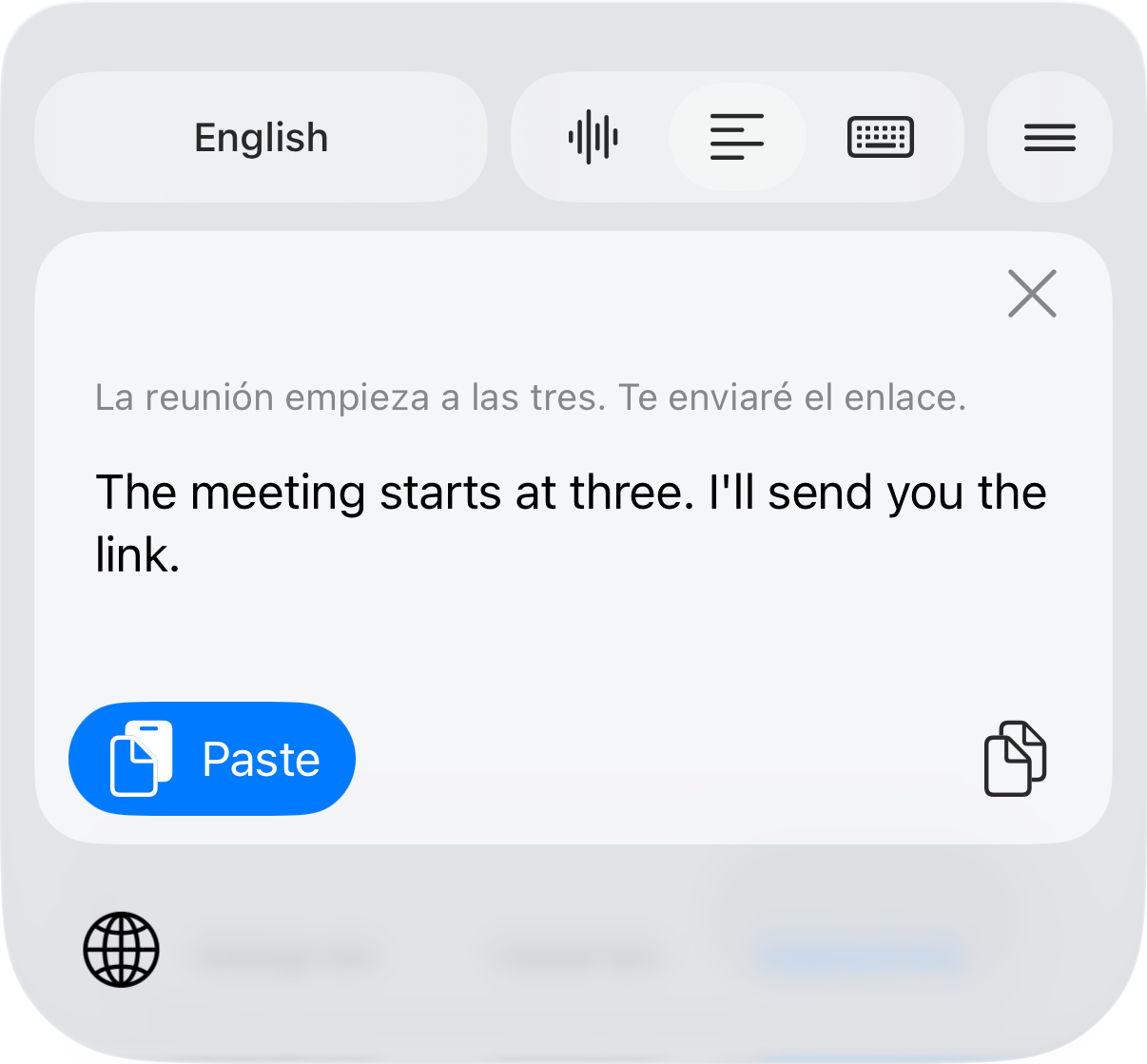
The main Transly app helps with messages, conversations and understanding audio. On iPhone, its translation keyboard lets you speak in a language you know and insert a translated draft into a compatible text field. You review the draft and send it yourself.
For an incoming message, you copy the text and paste it into the keyboard's reading feature. This is a deliberate action; the keyboard does not automatically read your conversations.
Transly also offers conversation and cross-app audio translation. The workflow depends on your device, permissions and the source app. Some audio sources cannot be captured, so check the feature on your own device before relying on it for a call or event.
The main app has iOS, Android and Mac download options. Feature availability differs by platform: an iPhone keyboard tutorial is not a promise that the same keyboard workflow exists on Mac or Android.
Video Translator by Transly for subtitle work
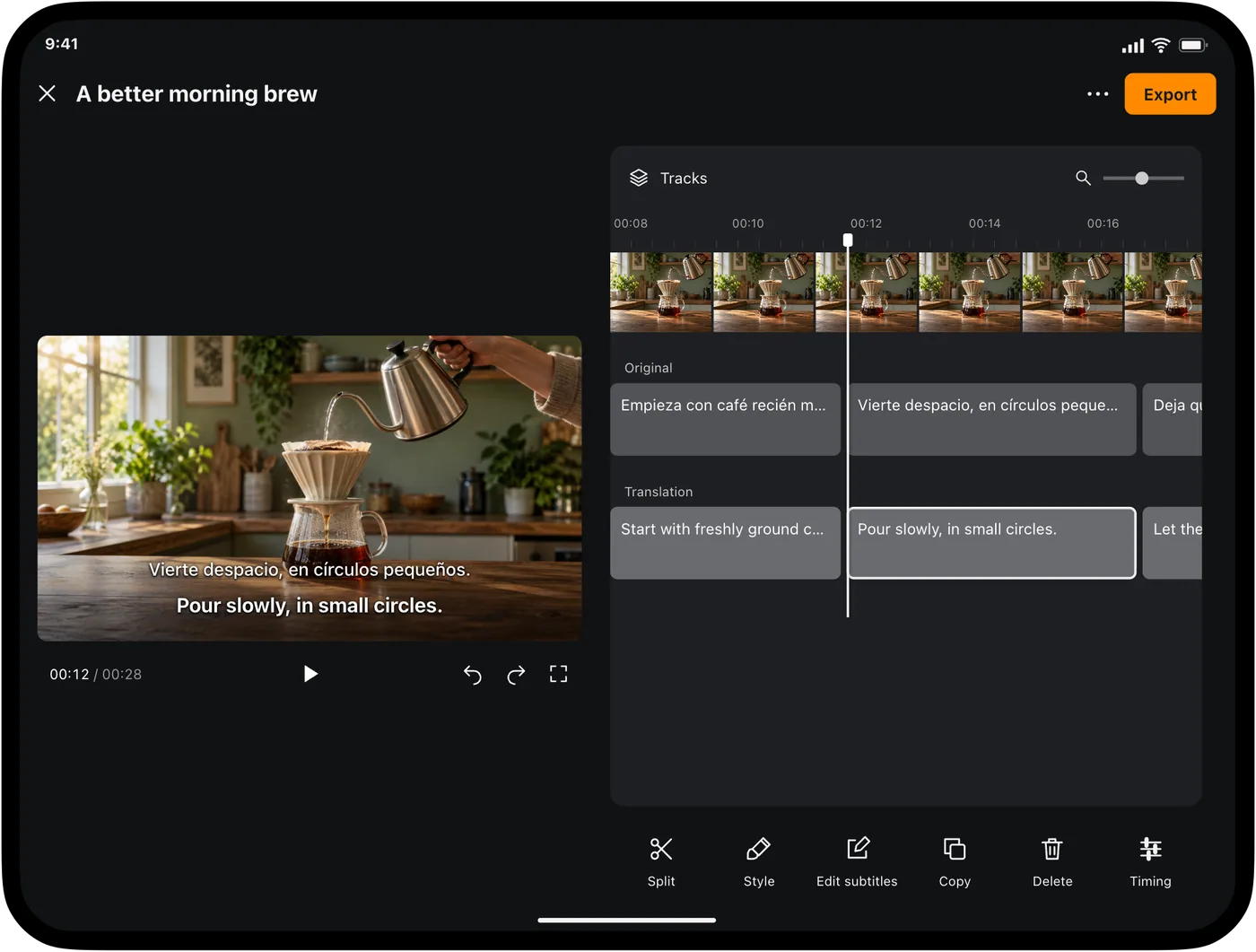
Video Translator by Transly is a separate product with iPhone and iPad downloads through the App Store and a dedicated Mac download on its product page. The video app for Mac is distinct from the main Transly Mac app. Start here when your task involves a video, a subtitle project or an exported file; check the options available on your platform.
You can import a local video, follow it with translation and generate bilingual subtitles for the full video. The editing workflow lets you review text, adjust subtitle timing and choose presentation styles. Export options include SRT and WebVTT subtitle files, as well as video with burned-in or switchable subtitles, subject to the chosen format and player support.
The main Transly app also has video-related features. The reason to choose the dedicated video app is the subtitle editing and export workflow, rather than the word “video” alone.
Check the practical details
Before starting, check the current store listing for device compatibility and the app for available languages and access requirements. Translation needs an internet connection; keeping a project on your device does not mean translation runs offline. Neither product description here promises video dubbing, voice cloning or downloading arbitrary website videos.
For messaging, begin with translating messages on iPhone. For video work, follow translating a video on iPhone. Each guide points to the application used in its instructions.