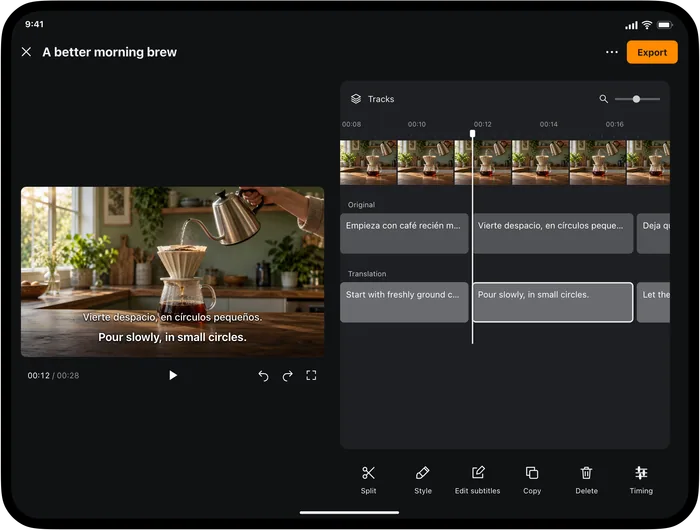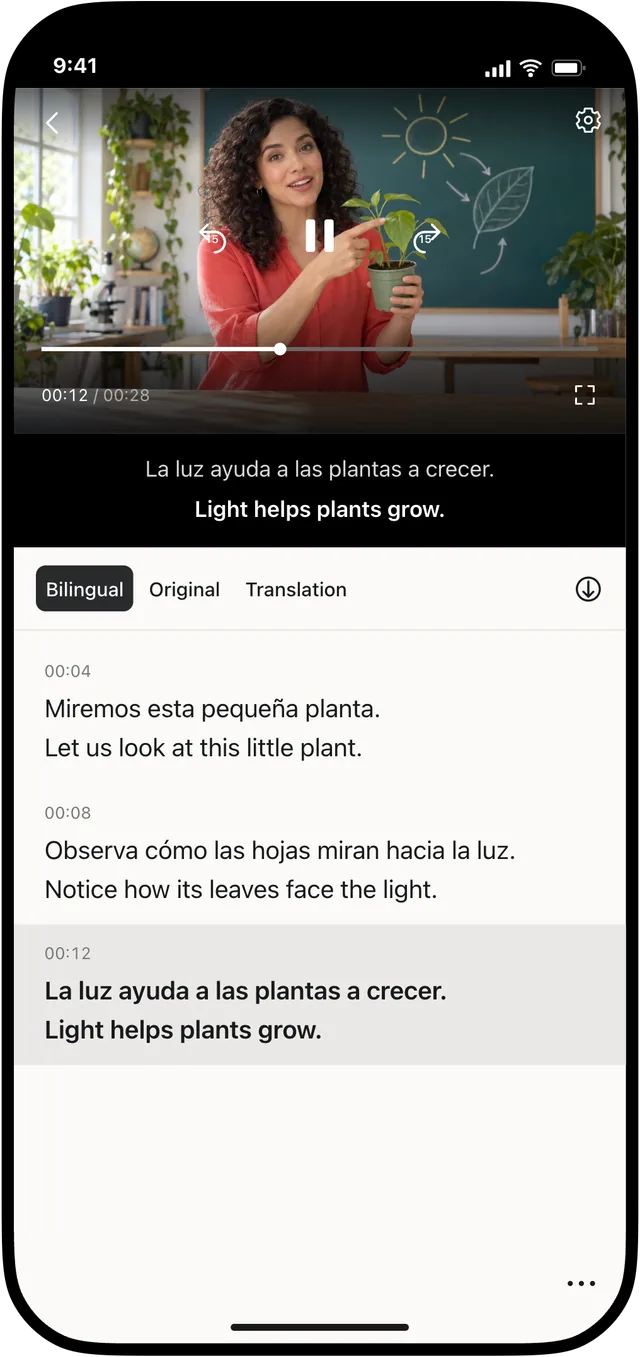
Video Translator by Transly helps you understand a local video and prepare subtitles you can edit or export. This guide follows the iPhone and iPad workflow, from importing a file to checking the finished captions.
There are two useful starting points: watch with translation as the video plays, or create subtitles for the whole video so you can review and refine them afterward. Choose the second workflow when your goal is an edited subtitle file or a subtitled video.
This workflow translates subtitles while keeping the original audio. Replacing the spoken audio with another language is dubbing; Video Translator by Transly does not provide that output.
Get the video ready
Save the video in Photos or Files and make sure you can open it on the device. If the file is stored in a cloud location, allow it to finish downloading before import. Keep the original so you can return to it later.
Open the app, sign in, and check the available translation time in your account. Translation needs an internet connection. This workflow starts with an accessible local video; it is not a promise to download videos from any website.
Create the translated subtitles
Bilingual
Review and edit → Export subtitles or video
- Import the video from Photos or Files into the workflow you want to use.
- Select the video's spoken language and the target language. Check both before starting a long task.
- Start translation or whole-video subtitle generation, depending on your goal.
- Open the resulting video project and review a short section with its subtitles.
- Check the beginning, a middle passage and the ending before moving to detailed editing.
Original-language subtitles are useful for checking recognition, while bilingual subtitles let you compare the source and translation. A translated line depends on the recognized speech, so correct an important name or number if it has been misunderstood.
Refine the result
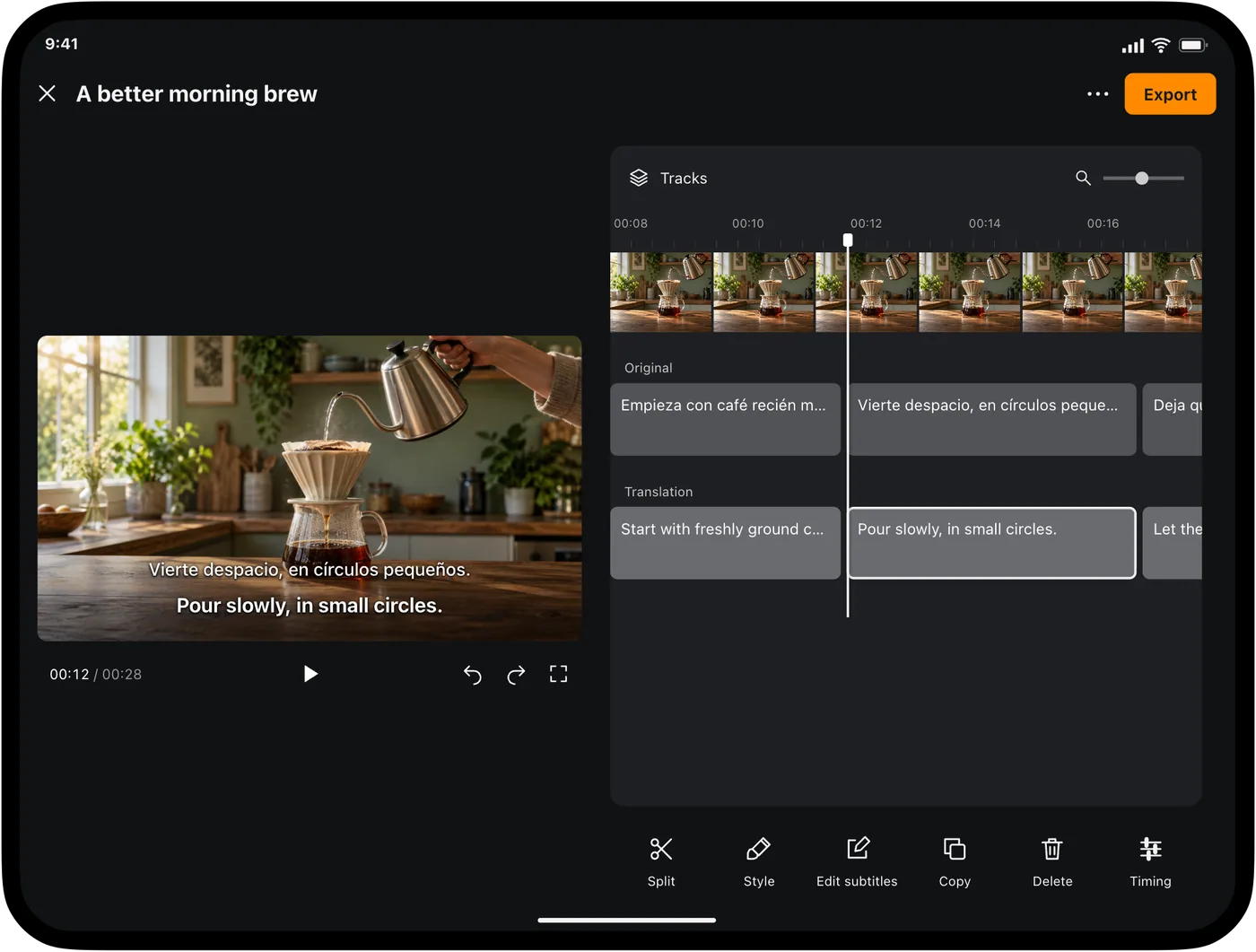
Review names, terminology, dates and amounts, then read longer lines at normal playback speed. A sentence that looks fine while paused may disappear too quickly when the speaker continues.
Use the subtitle editor to revise text and timing. Adjust style when you want a different visual presentation. See how to edit subtitle timing for a focused review workflow.
Choose what to export
Export a subtitle file when another editor or platform will combine it with the video. SRT carries text and timings; WebVTT is another option for compatible web-video workflows.
Export a subtitled video when you want the media and captions together. Burned-in subtitles remain part of the picture. Switchable subtitles require a player that supports the subtitle track.
Open the exported result in its intended destination before sharing it. Check that it uses the right language, that the first and last lines are present, and that the subtitles match the final video cut. Keep the project if you expect to revise the text later.
To decide whether viewers should be able to turn captions off, see burned-in and switchable subtitles.