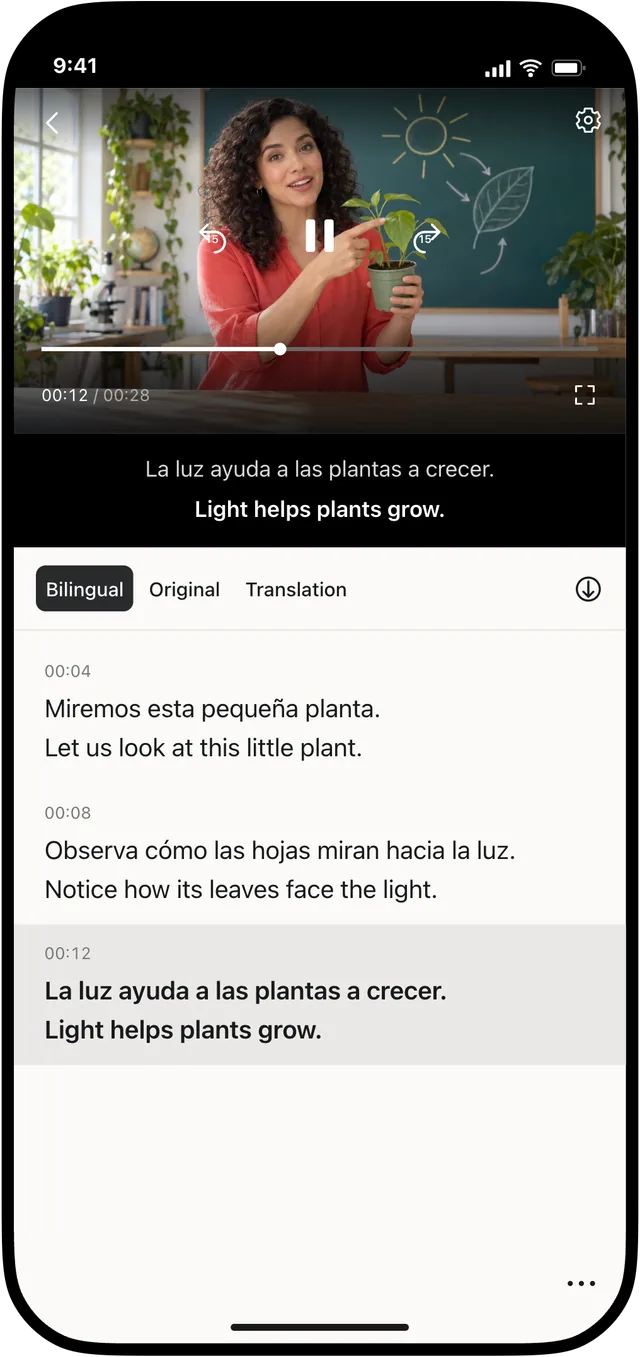
A subtitle needs to arrive with the speech and stay long enough to be read. Accurate wording alone is not enough: a caption that appears early can reveal the next line, while one that ends too soon leaves the viewer behind.
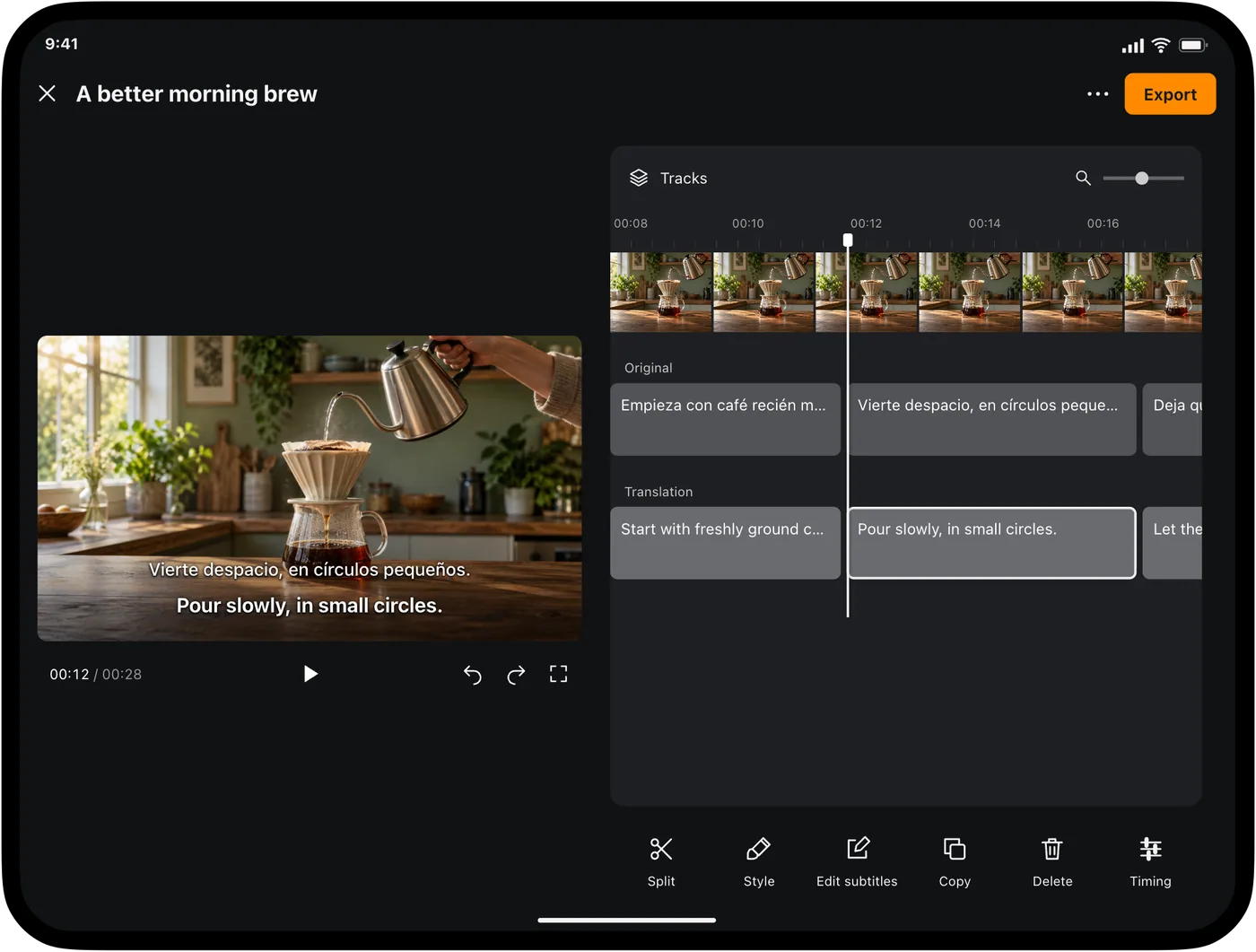
The subtitle editor in Video Translator by Transly lets you refine the text, timing and style of generated subtitles. The following review process is for an existing video project on iPhone or iPad.
Work from the final video version
Before adjusting cues, make sure you are editing the same video cut that you intend to share. Removing an introduction or speeding up a clip afterward changes the relationship between the audio and subtitle timestamps.
Open the subtitle project and keep the video preview visible while you work through the timeline. Listen with sound on. The waveform or timeline position can help you navigate, but the spoken audio is the reference for when a line belongs on screen.
Correct one passage at a time
Times are in seconds.
Pour slowly, in small circles.
- Play a short section at normal speed and select the subtitle cue that arrives too early or late.
- Open Timing. The Start and End values are in seconds, with up to three decimal places.
- Set the start and end to match the speech, then select Apply timing. The end must be later than the start and within the video duration.
- Replay from just before the cue, including the preceding and following lines.
- Repeat for the next cue. With bilingual subtitles, check the corresponding cue on each track.
For example, moving 4.000–6.000 to 4.200–6.200 delays that cue by 0.2 seconds without changing its two-second duration. This is an illustrative edit, not a recommended offset for every video.
Keep start and end times in the correct order. Where two cues overlap, verify that the overlap matches the conversation and does not create confusing layers of text. A short gap can be appropriate when no one is speaking.
Separate timing problems from text problems
If a long caption is difficult to read, extending it across the next speaker's sentence may create a new problem. First check whether recognition added repeated words or whether the translation needs a clearer phrasing. Keep the speaker's meaning intact when editing.
With bilingual output, check both lines together. The translated sentence may be longer than the original, so review its legibility on the screen size your viewers will use. Font size and position affect readability, but they cannot fix incorrect cue timing.
Review the exported file too
After editing, export a short result or your completed video and open it in the destination player. Check the first spoken passage, several transitions and the ending. If all lines are displaced by a similar amount, confirm that the exported subtitles and video came from the same cut.
Keep the editable project for later corrections. When you need to continue in another tool, export an SRT subtitle file and keep it together with the matching video.