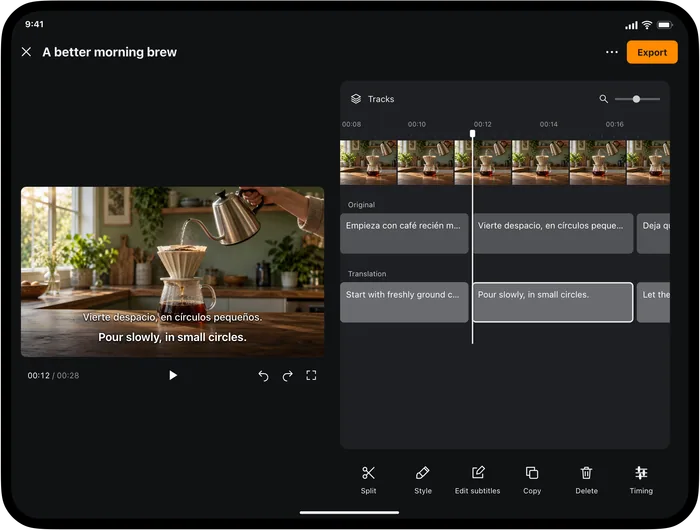
An SRT file contains subtitle text and timestamps. It is useful when you want to continue editing elsewhere, provide captions separately from a video, or upload subtitles to a platform that accepts SRT.
Video Translator by Transly can export SRT and WebVTT from a video subtitle project. This guide covers SRT export on iPhone or iPad. Exporting a subtitle file does not burn the words into the video picture.
Review the project before export
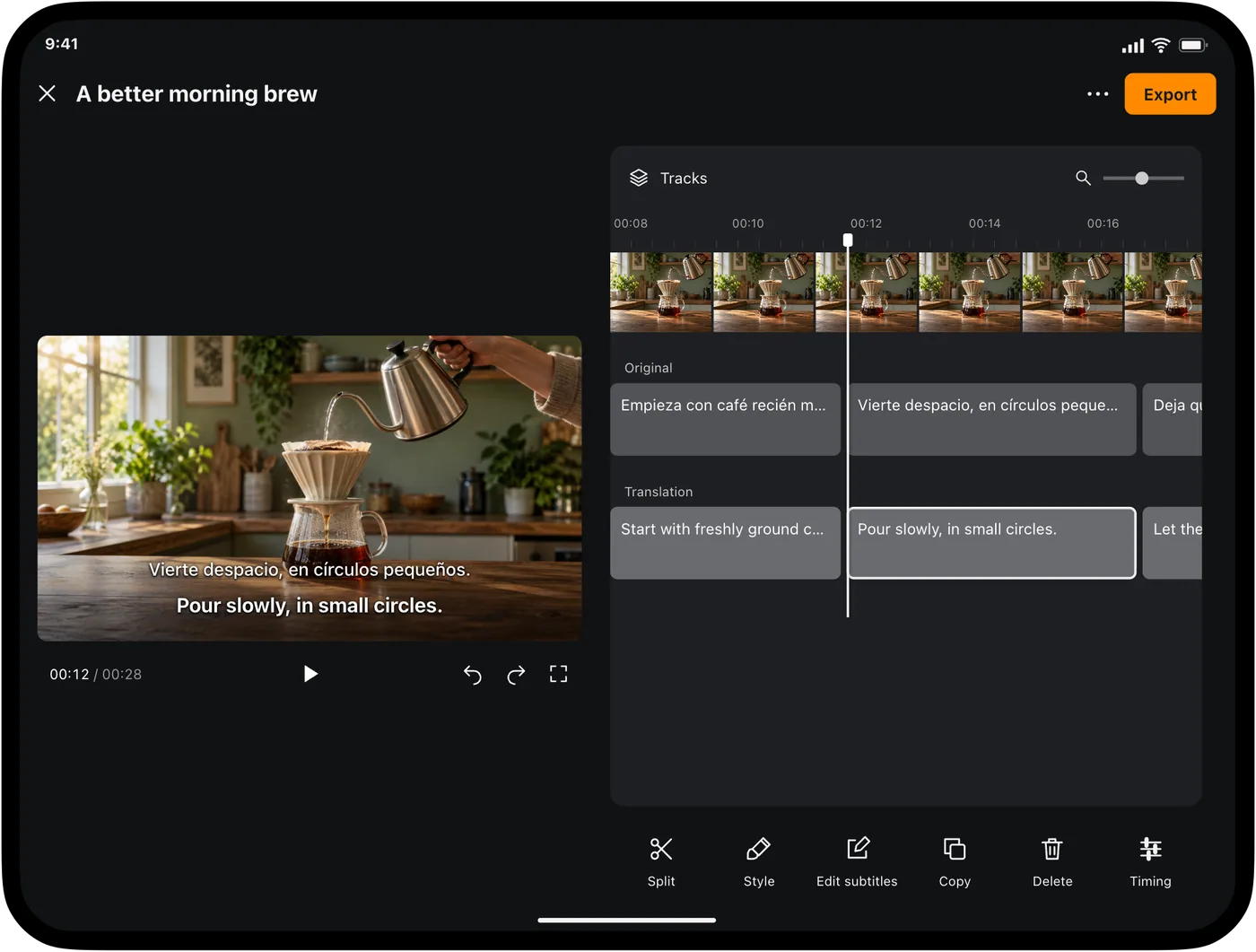
Open the project containing the completed subtitles. Check that it belongs to the final video cut and that the source and target languages are the ones you need.
Correct important recognition and translation errors before exporting. Pay attention to people's names, numbers, specialized terms and lines near cuts or long pauses. If captions arrive early or late, adjust their timing while you still have the video preview available.
Export the subtitle file
- Open the subtitle project in the editor and select Export.
- Expand Subtitle files, then select SRT subtitle file.
- Under Include subtitle tracks, keep only the original, only the translation, or both. Selected tracks are combined in track order; selecting both does not create two independently switchable tracks.
- Select Export, wait for completion, then choose Share or Save to Files.
- Save the file with the matching video and a recognizable language/version name, such as
interview-en.srt.
The sample above has one cue: 1 is its sequence number, 00:00:04,200 --> 00:00:06,200 gives its times, and the following lines are its text. A blank line separates it from the next cue.
For bilingual output, confirm that the destination can display the two languages clearly. Some destinations expect a separate subtitle track for each language, in which case a single-language export may be more suitable.
What SRT preserves
SRT carries the words, the order of cues, and their start and end times. It is not a reliable way to preserve every visual styling choice from the editor. The destination player or editing software usually controls how subtitles are rendered.
If consistent appearance is essential, consider a video with burned-in subtitles. If viewers should be able to switch captions on and off, consider a supported subtitle track instead. See burned-in and switchable subtitles compared.
Check the handoff
Open the SRT in its intended destination together with the matching video. Confirm that special characters display correctly, that the selected language layout is right, and that captions align at the beginning and end.
A subtitle file is not the video itself. When sharing with another editor, send the matching media or clearly identify which version it accompanies. Keep your original project and exported subtitle file; if the video is trimmed or its speed changes later, review the timings again before reuse.