Writing to someone in another language involves two different tasks: understanding their message and composing your reply. Transly brings both into an iPhone keyboard. You choose what to translate, review the result, and send it through the messaging app yourself.
Set up the keyboard
Install the Transly main app, sign in, and follow its keyboard setup. Enable the Transly keyboard in iPhone settings, allow the permissions requested by the setup, and grant microphone access for voice input. Keyboard translation requires an internet connection.
Open a message draft and switch to Transly using the keyboard selector. Third-party keyboards work in compatible text fields; an app or a secure field may require the system keyboard instead. If Transly is unavailable in one field, try an ordinary message draft before changing settings.
Write a translated reply
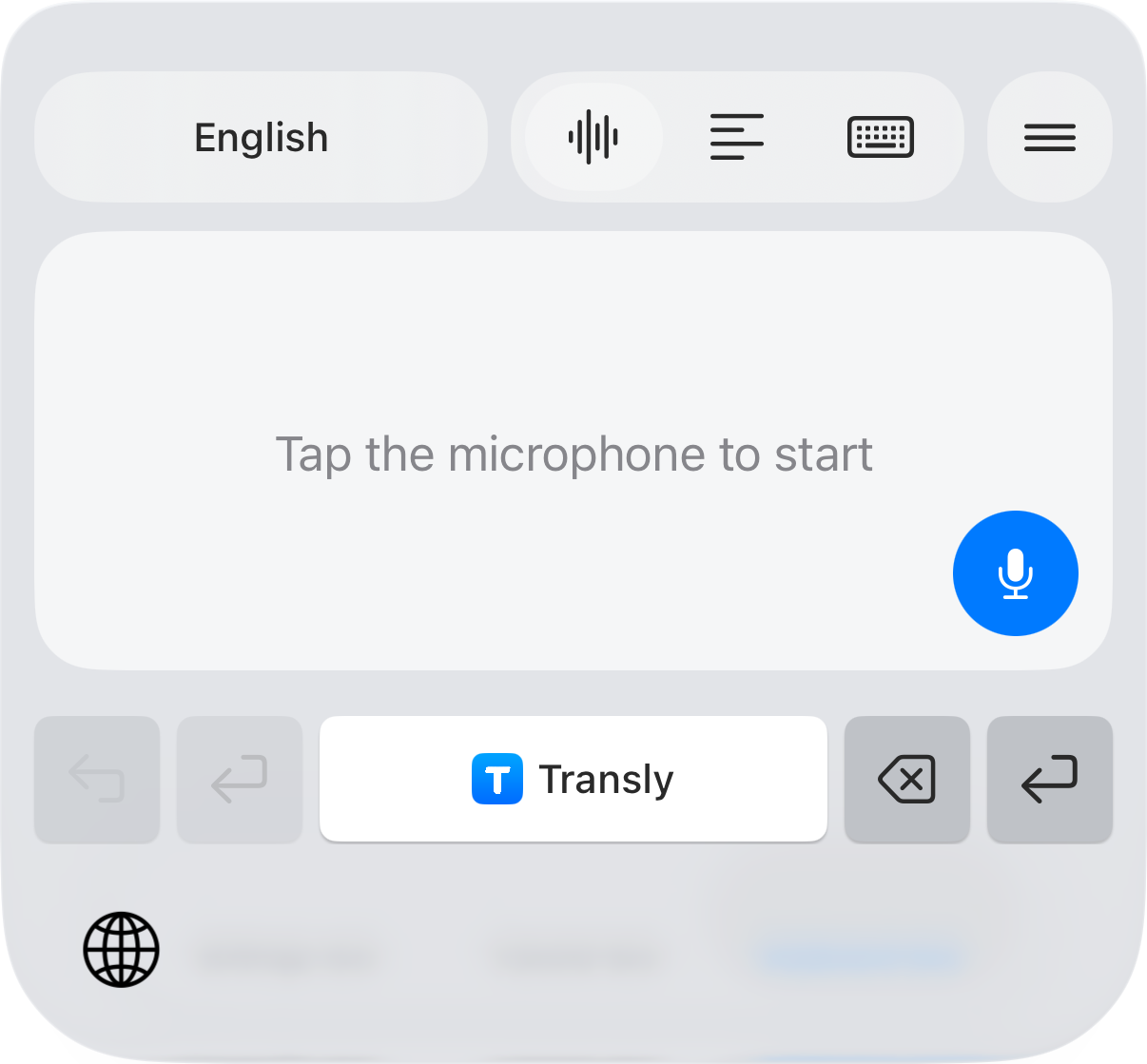
- Tap the waveform icon at the top of the keyboard, then choose the recipient’s language at the top left.
- Tap the blue microphone and speak your reply. Pause naturally between sentences.
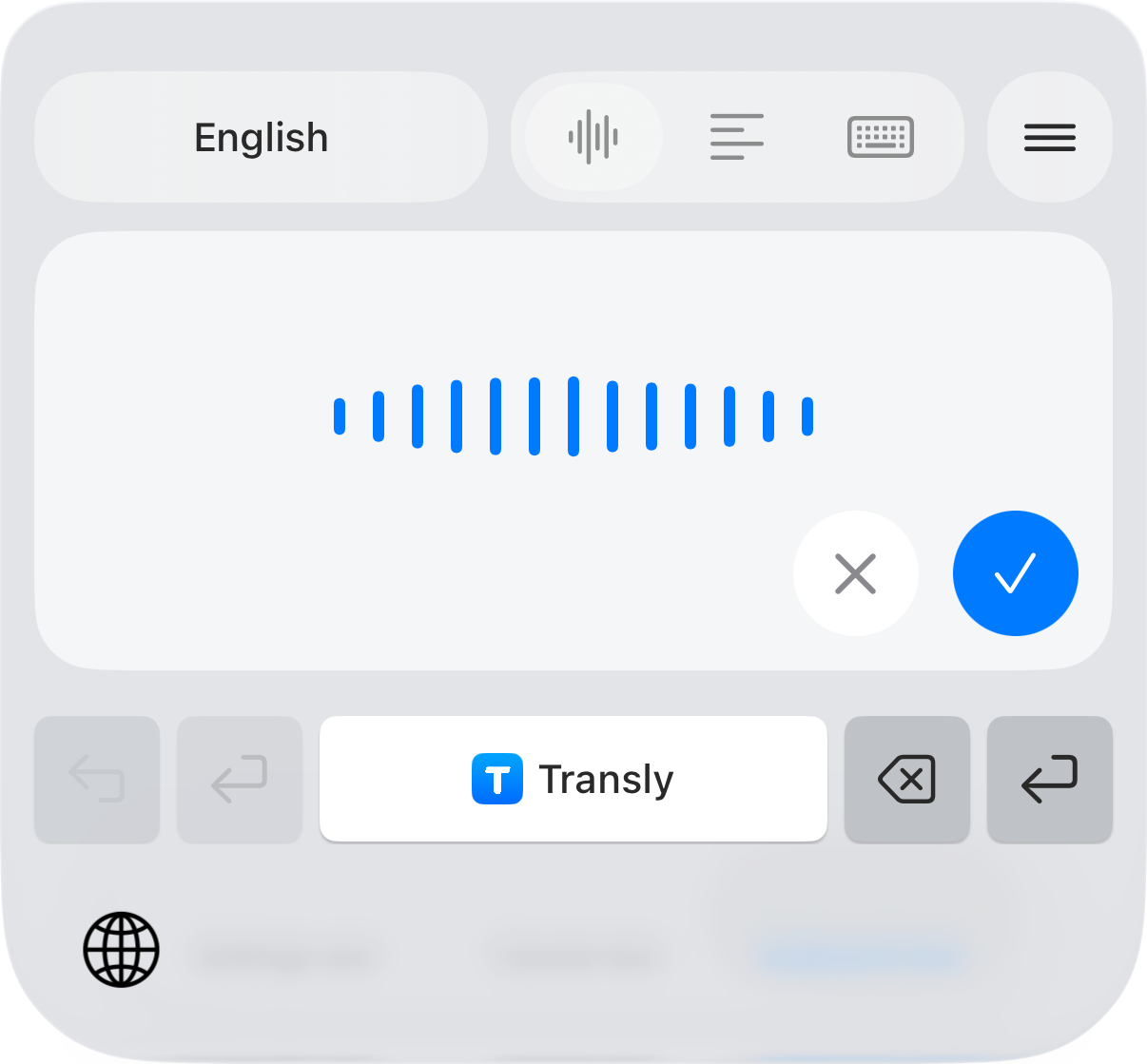
- Tap the checkmark to insert the translated draft, or × to cancel this recording.
- Read the draft in the message field before sending it. Check names, dates, amounts, addresses and any promise you are making.
- Make any edits you need, then use the messaging app's own send action.
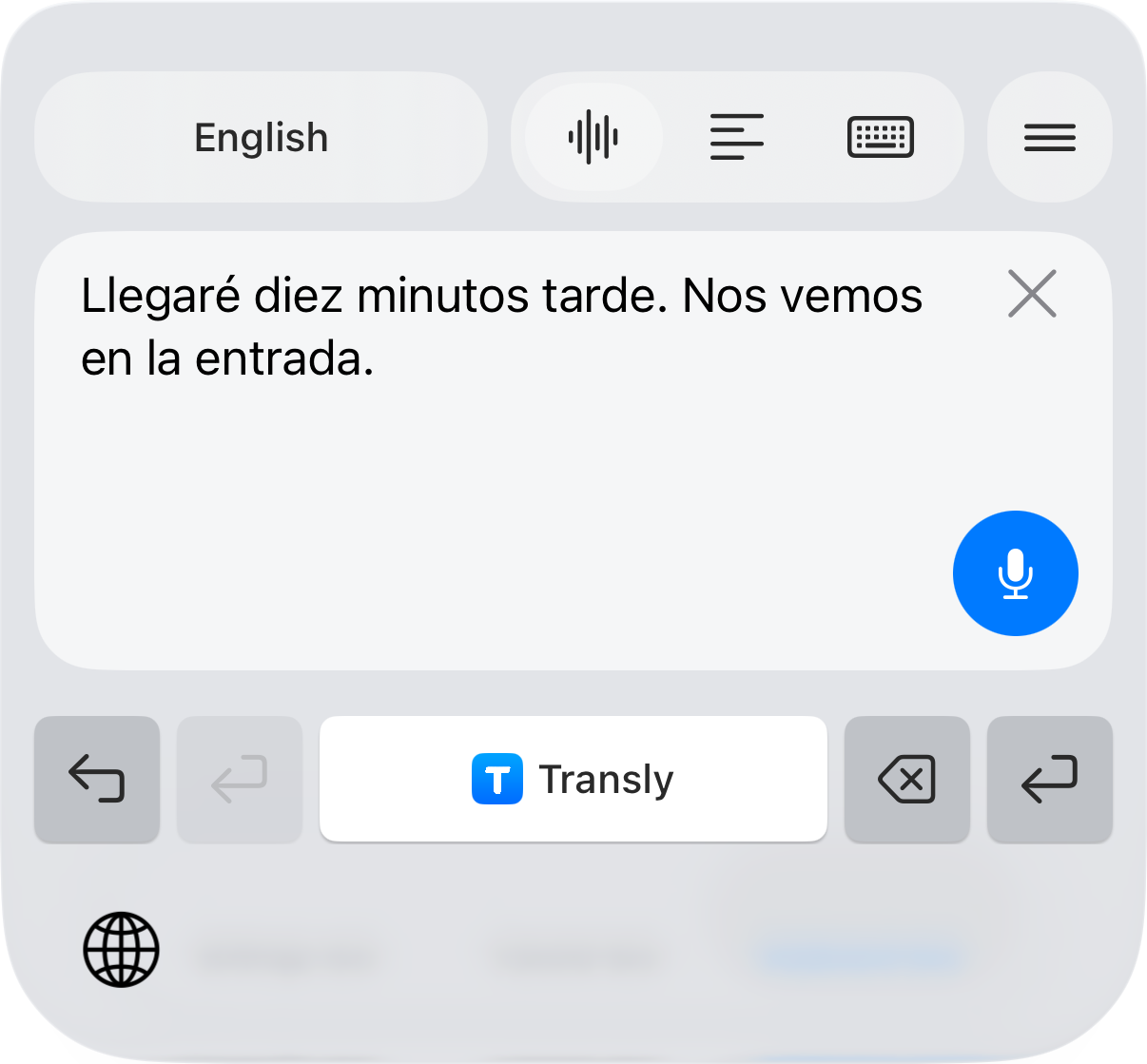
In the example, “Llegaré diez minutos tarde. Nos vemos en la entrada.” becomes an English draft: “I'll be ten minutes late. Let's meet at the entrance.” The keyboard keeps the recognized source text visible. Check the ten-minute delay and the meeting place before sending; record again if the source text is wrong.
Transly also offers Natural, Formal and Casual tones. Choose a tone that suits the conversation, then review the meaning again. Changing the tone should not change the facts.
Understand a message you received
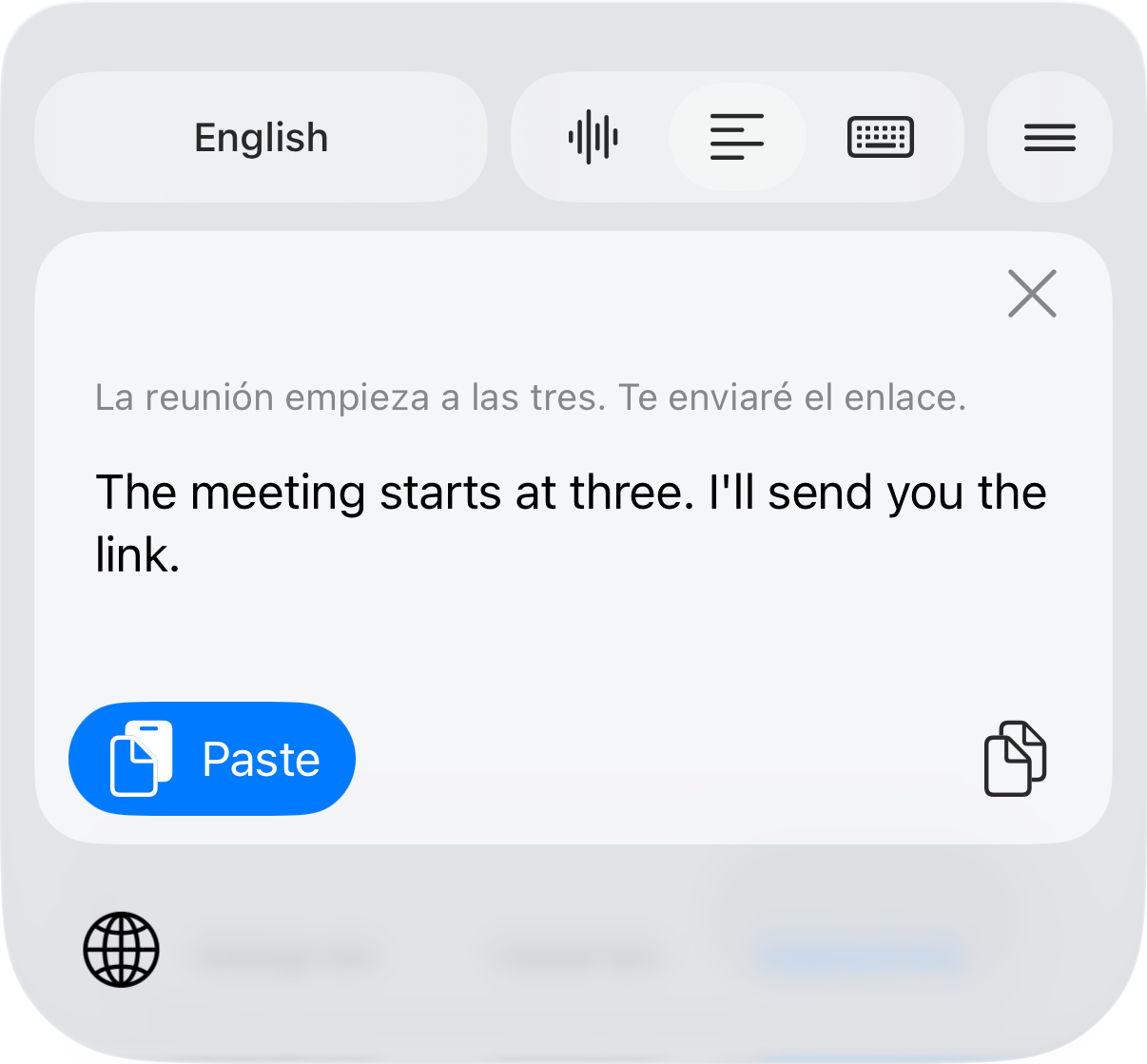
Copy the incoming text, then tap the horizontal-lines icon at the top of the keyboard. Choose your reading language at the top left and tap Paste at the bottom left. The panel shows the original and translation together. Tap the waveform icon to return to voice input.
The keyboard does not automatically read the conversation around the text field. Pasting the sentence you need also makes it easier to check which text produced a translation.
If the result needs another try
For unclear voice input, try a shorter sentence in a quieter place. For a confusing translation, include enough context to identify the subject and avoid unexplained abbreviations. If the keyboard is missing, check that it is enabled and that the current field permits third-party keyboards.
Review the final draft before sending. For spoken audio rather than text messages, see translating audio from other apps.