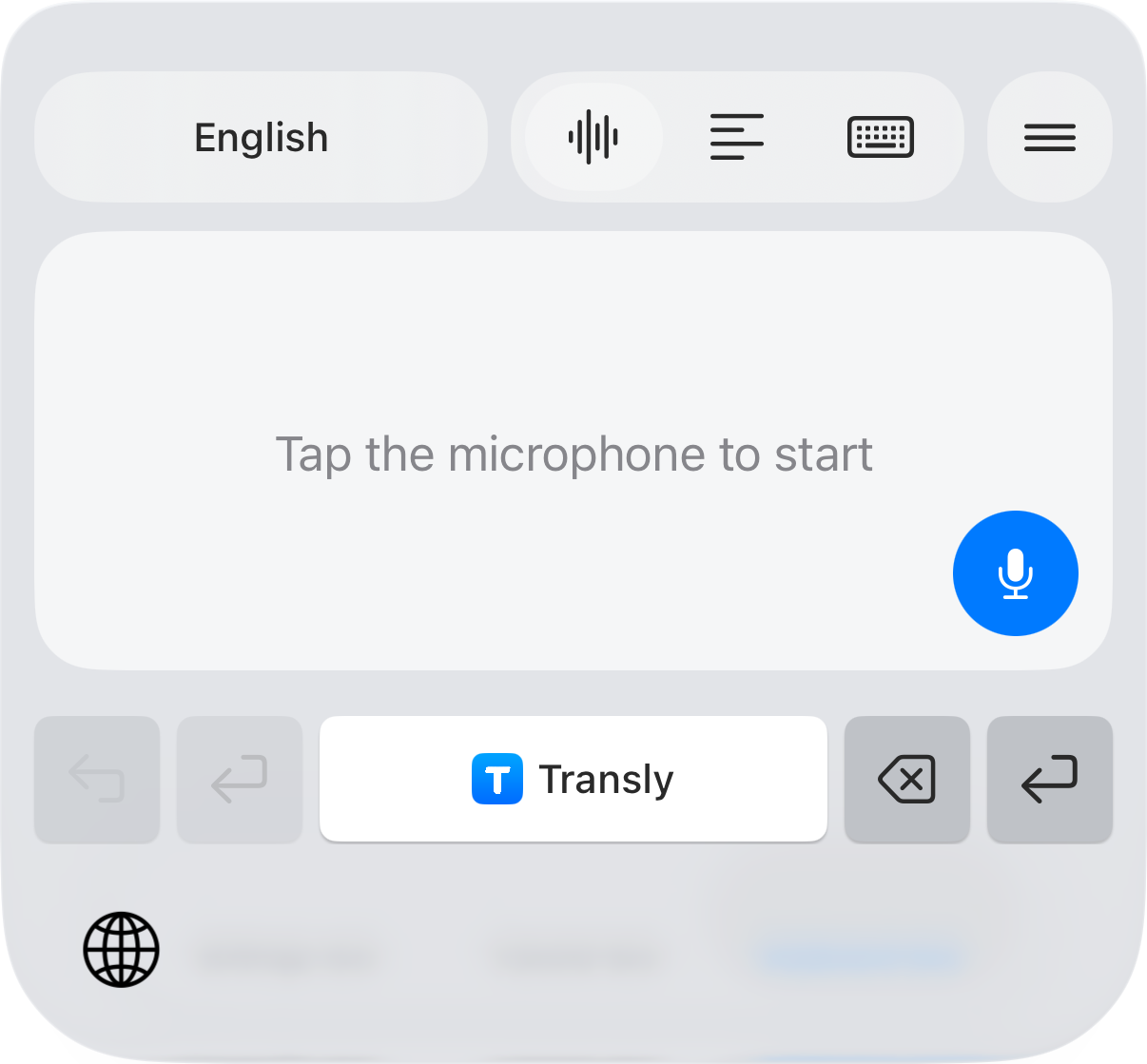
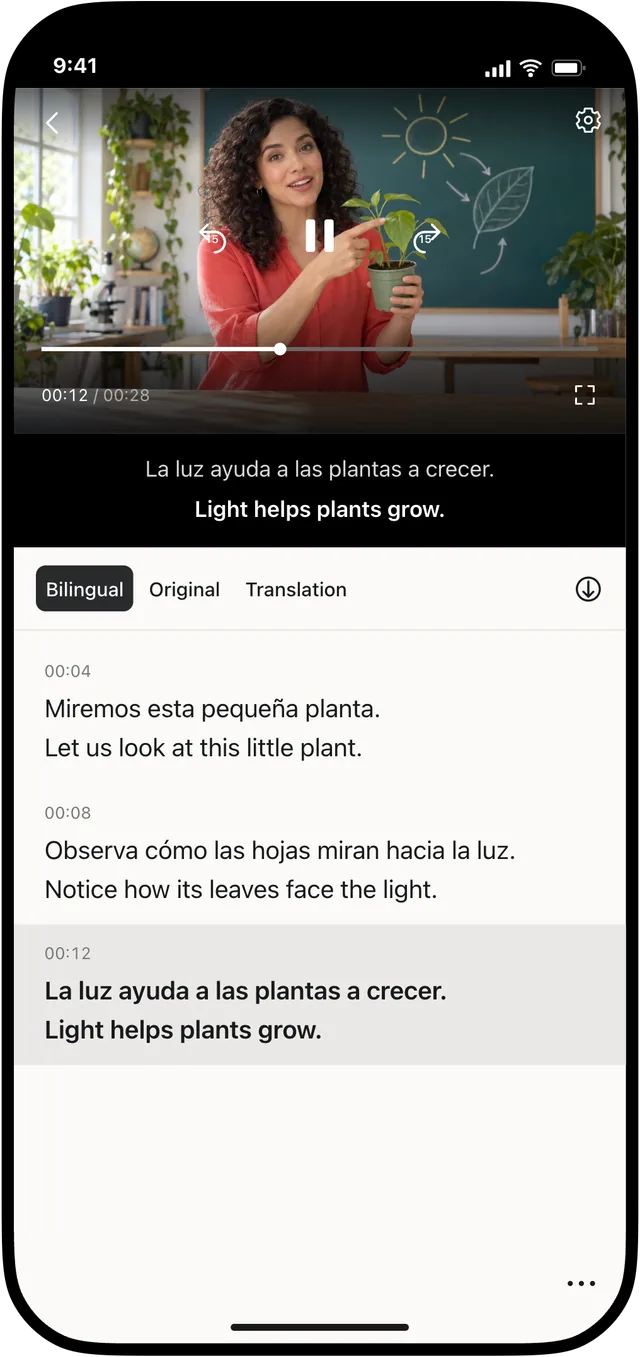
When the content you want to understand is playing in another app, Transly can provide translated captions through its cross-app audio workflow. This guide covers setting up that workflow on iPhone and checking whether the source audio is available for capture.
Compatibility depends on the source app, the media and system restrictions. Protected content and some calls may not expose audio to the broadcast. A successful setup does not mean every app or recording can be translated.
Prepare the source and languages
Open the source app first and confirm that its audio plays normally. Check that speech is audible and that the video is not muted. Then open Transly, sign in, and select its cross-app audio translation feature.
Choose the source and target language settings offered for that feature. Use the actual spoken language as the source when a choice is required. Translation needs an internet connection; leave enough battery for the listening session.
Start a short trial session
- Start the system broadcast from Transly and follow the iPhone confirmation shown on screen.
- Return to the app containing the audio and begin playback.
- Listen to a short passage and check whether new source text and translated text appear in Transly.
- If available for your session, enable the floating subtitle view so you can follow captions while staying in the source app.
- Check the translation language and adjust the subtitle presentation for comfortable reading.
A short passage is enough to verify the audio path before following a long lecture or video. Start with one clear speaker rather than a noisy scene with music and several simultaneous voices.
When there are no captions
First distinguish a missing audio signal from a translation problem. If the source transcript is empty, confirm that playback has started, the system broadcast is active, and the source app permits capture. Increasing the volume cannot make protected audio available to the broadcast.
If source text appears but the translation is unexpected, check the language settings and the network connection. Fast speech, background sound and overlapping speakers can make recognition harder. Replaying a clearer passage can help you identify whether the problem is the source or the settings.
Finish the session deliberately
Stop the translation session and system broadcast when you are done. Leaving the source app or pausing a video is not the same as ending the capture session. Use the status shown by Transly and iPhone to confirm that it has stopped.
For a video already saved in Photos or Files, a local-video workflow may be more suitable. Video Translator by Transly offers video projects and subtitle editing; see how to translate a video on iPhone.