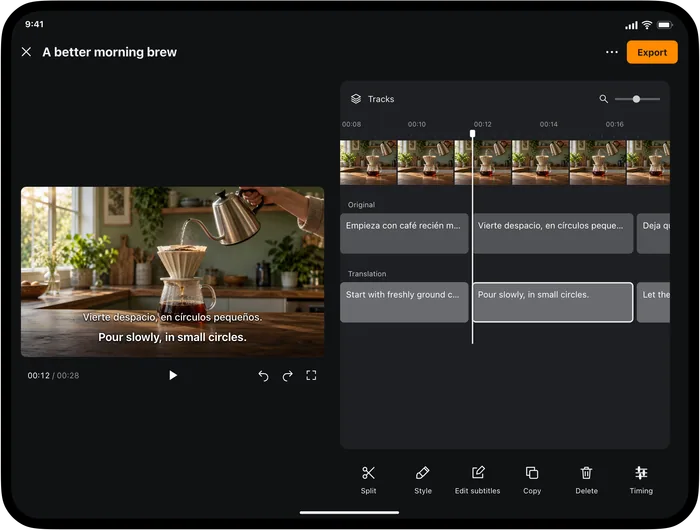
Use the iPad editor when you want to review several subtitle lines while keeping the video preview in view. Open the subtitle project in Video Translator, then work through the text, timing and style before exporting.
Start with a subtitle project
Import the video from Photos or Files and choose subtitle translation when you want to prepare the whole video for editing. Set the source and target languages, wait for the subtitle task to finish, and open the resulting project. Live viewing is a separate option when you only want to watch with translation.
Review text with the preview
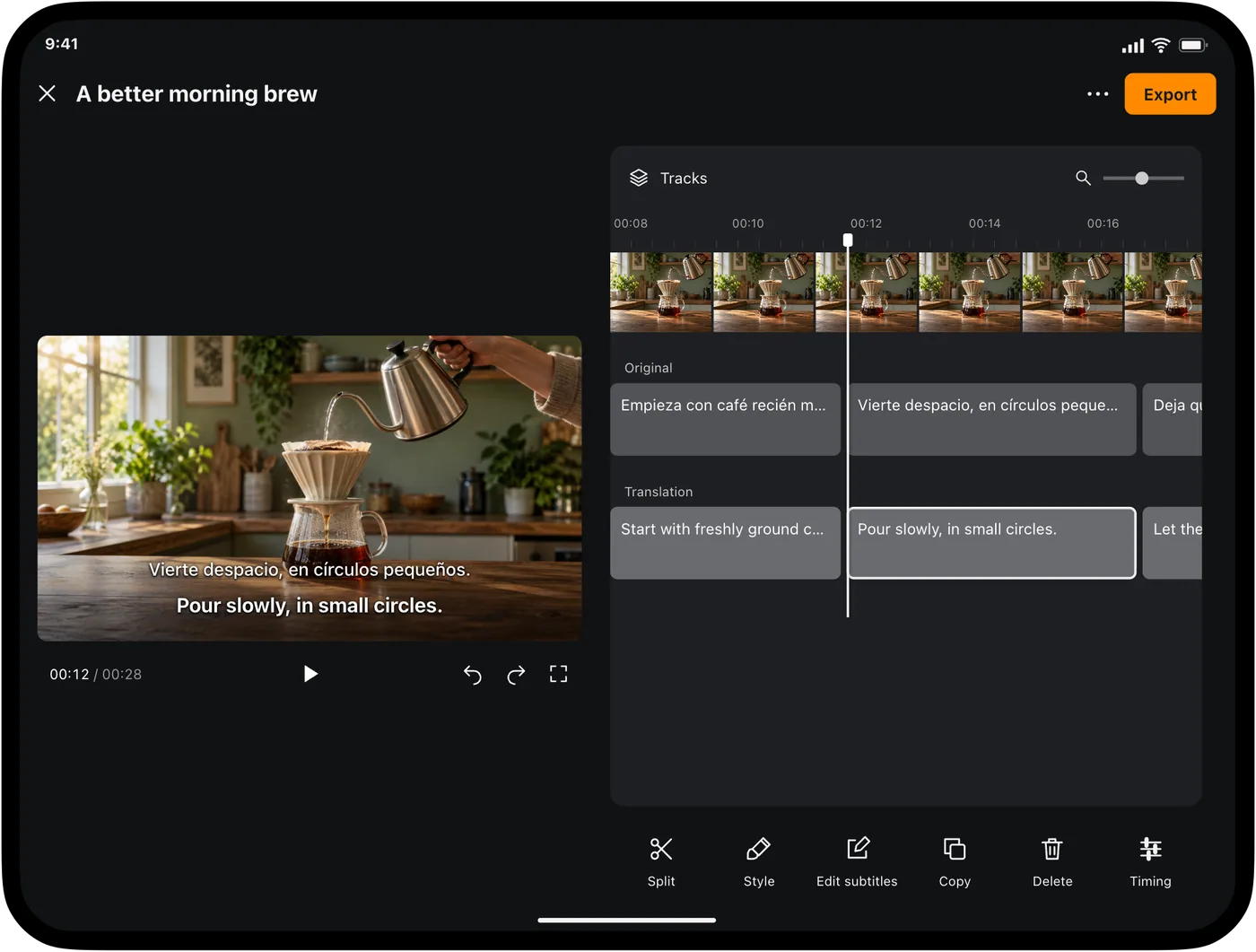
Play a short section, select the line you want to change and compare it with the speech. Correct names and terminology in the appropriate track. Keep the wording short enough to read at normal speed and replay the edited passage before moving on.
Adjust time and appearance
If a correct line appears too early or late, adjust its start and end times. Use the preview to check that it does not cover the next sentence.
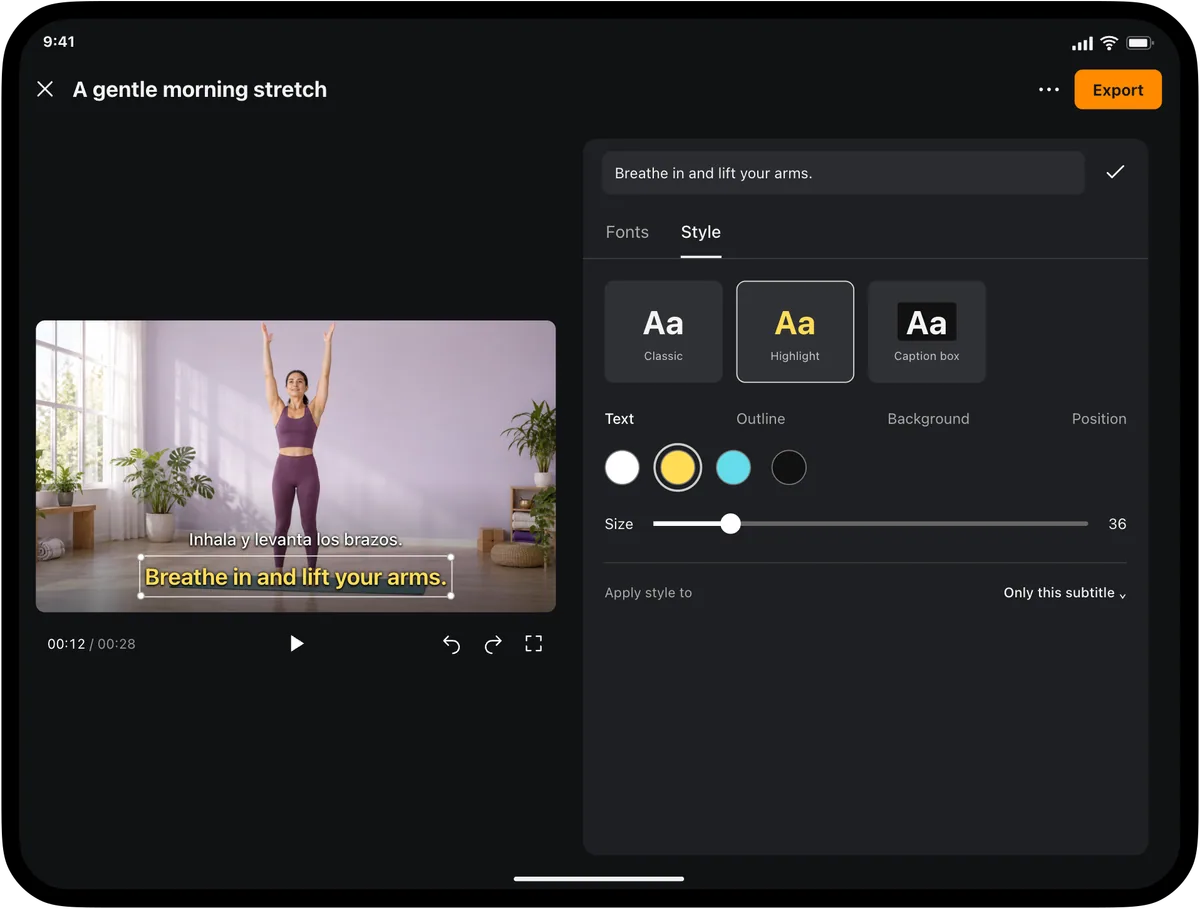
For styled video output, check font size, line wrapping, placement and contrast against a few different frames. A subtitle that is clear on a dark shot may be hard to read on a bright one.
Export for the destination
Use SRT or WebVTT for a player or editor that accepts subtitle files. Use a subtitled video when you want the picture and words together. Open the exported result in the app or player where it will be used and check the beginning, middle and ending.
See SRT export for text-file delivery, or subtitle timing for a focused timing correction.