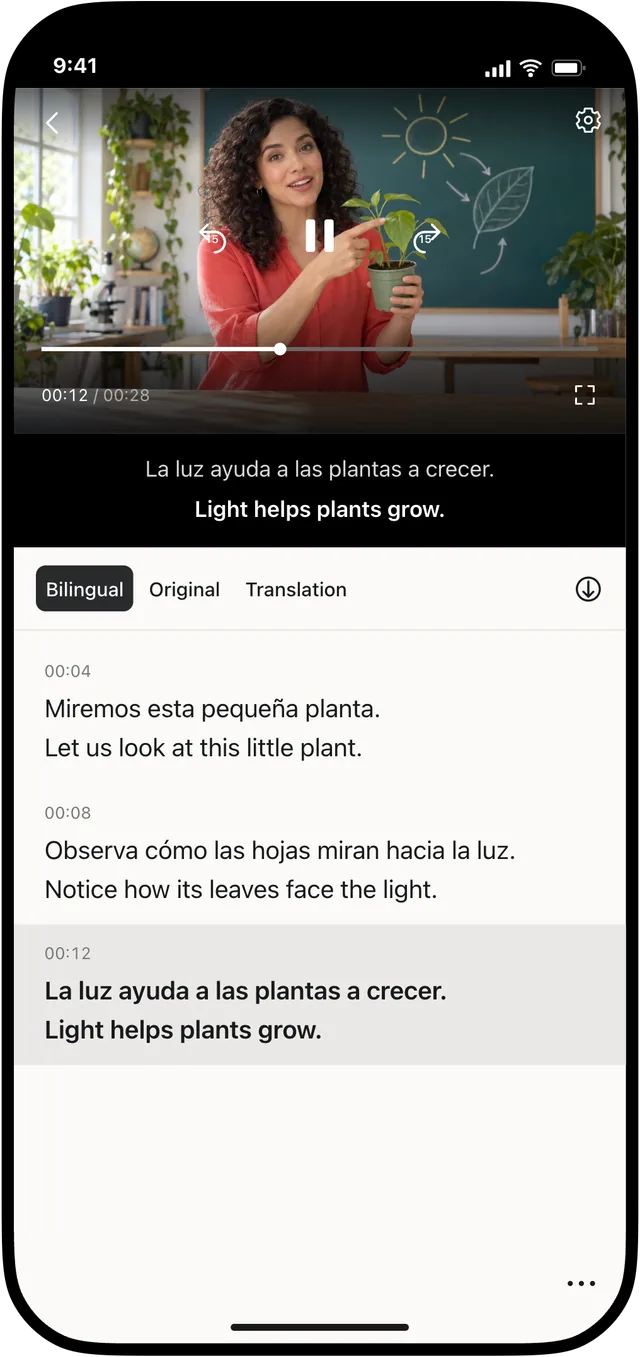
A video does not have to be saved in Photos or Files before you can understand it. Transly Video Translator can translate the audio playing in another app, including TikTok, YouTube and live streams.
Start with the video you want to watch
Open the source app and make sure the video plays with sound. Then open Video Translator and choose its video and live-stream translation entry. Select the spoken language and the language you want for the captions.
Vierte despacio, en círculos pequeños.
Pour slowly, in small circles.Stop both translation and broadcast when finished.
Start the broadcast and return to the video
- Start translation and confirm the iPhone system broadcast prompt.
- Return to the app containing the video or live stream.
- Start playback and follow the translated captions. Use the floating subtitle view to keep them beside the video.
- When you finish, stop translation and end the system broadcast.
There is no need to download or upload a complete video file for this workflow. Translation follows the audio being played, so it also works for a live stream whose ending has not happened yet.
Check the first few sentences
Before settling into a long video, check that the original transcript and translation are appearing. If neither appears, confirm that the broadcast is active and the video has sound. If the original text appears in the wrong language, check the source-language setting.
For a video already on the device, watching a local video is another option. To produce an edited subtitle file, use that guide’s subtitle-project workflow instead.