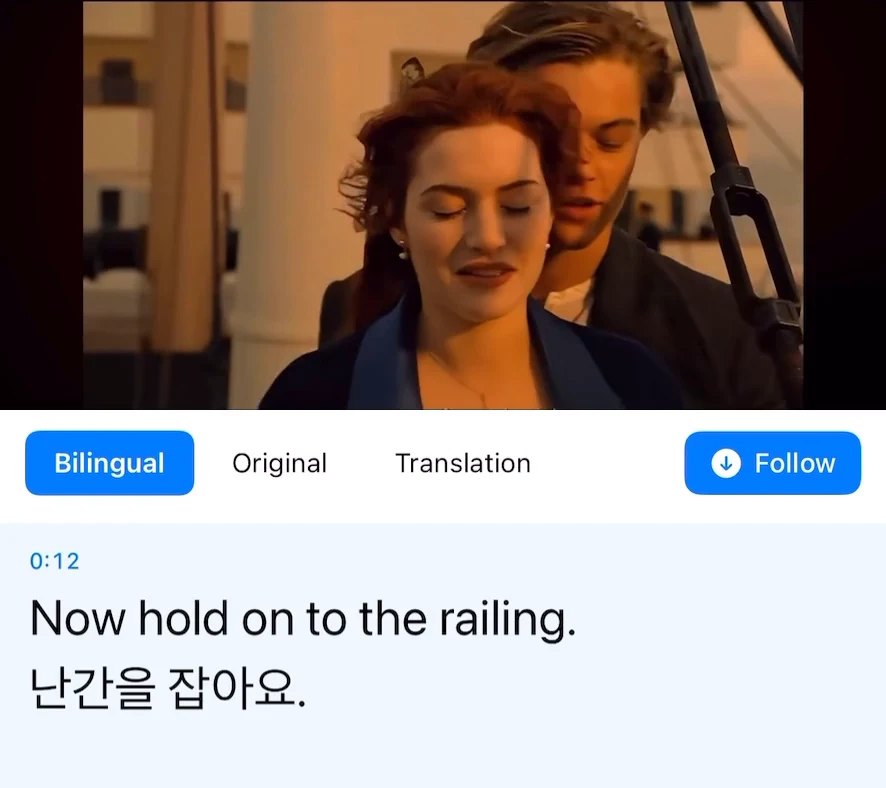
When a YouTube video is in a language you do not understand, you can watch it with translated captions on your phone. First check the video’s caption options. If they do not provide the language you need, Transly can translate the audio while you keep watching in YouTube.
Check the video’s caption options
Open the player settings and look for captions or subtitles. Select the language you want if it is listed; use auto-translate when YouTube offers it for that video. These options depend on the captions available for the video.
Use Transly for the audio
- Open Transly and choose cross-app audio translation.
- Select the spoken language and the language you want to read.
- Start the iPhone system broadcast, then return to YouTube.
- Play the video and follow the translated captions in the floating view.
You do not need to download the video or paste its URL into a separate upload tool. The same audio workflow can be used while watching a YouTube live stream.
Replaying a difficult passage
Pause or replay the video when you need to check a technical term, address or name. Read the original transcript as well as the translation. For a live stream, captions follow what is currently being said; they are not a finished subtitle file prepared in advance.
Stop when you finish
End translation and the system broadcast after watching. See the cross-app setup guide if captions do not appear. If you already have a video saved on your phone, you can open it directly in Transly.