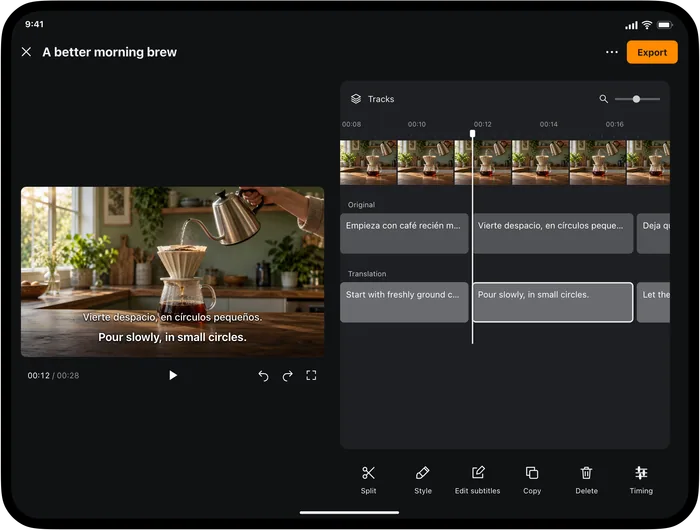
To add subtitles to a video on iPhone or iPad, open a subtitle project in Video Translator by Transly, import the file, and select the spoken and subtitle languages. Review the generated text and timing before exporting an SRT file or a subtitled video. If you only want to understand the video while watching, use the viewing mode instead; you do not need a finished subtitle project first.
The short version: import, review, export
- Import the video into a subtitle project. Choose its spoken language and the language you want the subtitles to use. Start the whole-video task when you need captions for the complete file.
- Review the result. Play the video alongside the text. Correct names, numbers and missed words, then adjust any captions that appear too early or stay too long.
- Choose the delivery format. Export SRT for another editor or compatible player. Export a video with burned-in captions when the words must remain visible without a separate subtitle setting.
Those are three stages, not three promises of instant completion. A short, clear clip needs less correction than an interview with overlapping voices. Generating the first draft automatically saves you typing every line, but the finished subtitle file still deserves a viewing pass.
Choose a method before you start
| Method | What you do | Where the work goes | A good fit |
|---|---|---|---|
| Manual subtitle file | Listen, type each caption and enter its start and end times | Transcription, translation and timing are all your responsibility | A tiny clip, unusual vocabulary, or an already approved script |
| Video editor with captions | Add or generate captions on the editing timeline, then revise them | Depends on the editor; check whether it exports text files or only rendered video | A project that also needs cuts, graphics and music |
| Video Translator by Transly | Import a video, generate a subtitle project, revise and export | Most of your attention goes to checking the automatic text and timing | A local video that needs translated or bilingual subtitles on mobile |
There is no useful universal “minutes per video” estimate. A clean product demonstration and a noisy street interview of the same length are different jobs. Manual work starts with a blank page; automatic work starts with a draft. If someone has already prepared a good transcript, preserve it as a reference rather than trusting a new automatic pass more than the checked text.
Prepare the right video file
Use the final cut whenever possible. If you create subtitles and then remove the opening scene, later captions will no longer match the same timestamps. Keep an untouched copy of the video and give the subtitle project a recognizable name, especially when you have several edits of the same recording.
A video saved in Photos or available through Files can be imported. If it is only a cloud placeholder, make the file available on the device first. You also need an internet connection for translation. “Local video” describes the input file, not a promise that speech recognition and translation happen entirely offline.
For a raw video with no subtitles, you do not need to find an existing SRT online. Speech recognition can create the first subtitle draft from its audio. If the clip contains only music or silent text on screen, this speech-based workflow will not magically produce a transcript of visible words. Add those captions manually in an appropriate editor.
Generate a subtitle project
Open the subtitle-making entry in Video Translator by Transly and import the video. Select the language actually spoken in the recording, rather than the language of the app menus. For an English recording with Spanish subtitles, choose English as the source and Spanish as the target.
Start the subtitle task and let it finish before expecting a complete export. The separate watching mode can show translation as you play a file, without waiting for a whole-video task, but that is a different goal. This guide uses a project because you want a reusable file or a finished video.
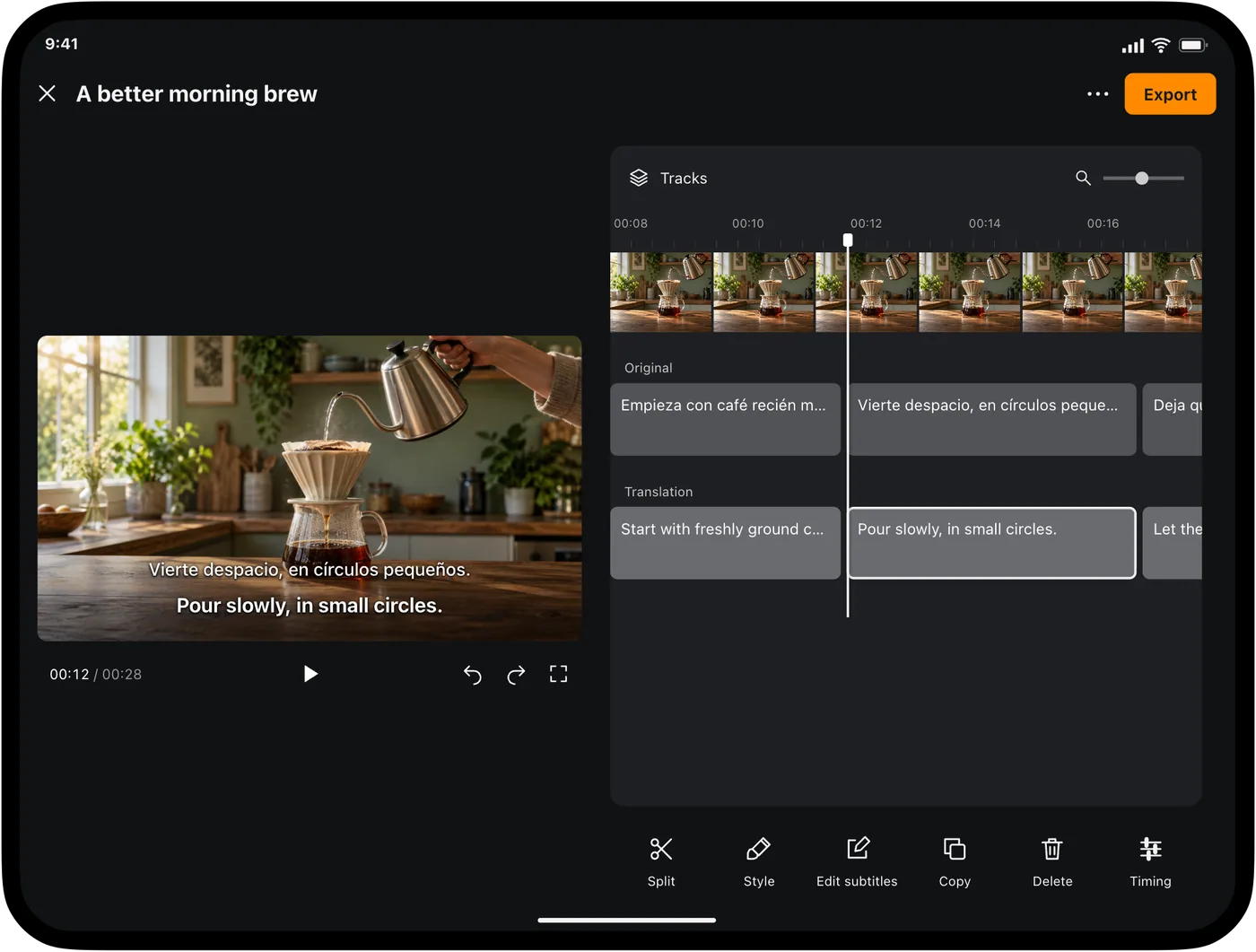
The editor illustration shows the subtitle workflow; its example lines are not a transcript of your video. Open your own project and listen to the first caption before making bulk decisions about its quality. If the source language is wrong, changing fonts will not fix the underlying words.
Correct words and timing together
Begin with details that can change the meaning: a person's name, a price, a negative such as “not,” a date, or a product code. Listen again at the troublesome passage. If the original transcript is wrong, check the translation against the audio rather than polishing a fluent translation of the wrong sentence.
Then watch the boundaries. A caption should appear when its words are being spoken, remain long enough to read, and disappear before it becomes confusing. Split a long thought into readable portions; do not squeeze an entire paragraph onto the screen just because it belongs to one speaker.
Use the project's text and timing controls to revise a line, and replay the surrounding passage. A caption can look correct in the list but cover a face or important label in the video. Check the actual preview on a phone-sized screen before exporting. The focused guides to subtitle text and subtitle timing cover those adjustments.
Translate the captions and choose bilingual text
Translated subtitles replace the written language, not the speaker's voice. For example:
English: The train leaves at six.
Spanish: El tren sale a las seis.
These are illustrative sentences, not a measured translation result. Their purpose is to make the export choices concrete: an English-only file contains the first sentence, a Spanish-only file the second, and a bilingual file can contain both for the same time interval.
Bilingual captions help a learner compare wording, but they also occupy more screen space. For viewers who only need Spanish, a translated-only export can be easier to follow. Check which language tracks are selected in Export; do not assume the file will use whichever preview happened to be visible last.
What an SRT file looks like
SRT is a text file containing numbered cues, time ranges and subtitle text. It carries neither the video nor a new audio recording. Here is a hand-written example showing a bilingual cue; the timestamps are for demonstration:
1
00:00:02,000 --> 00:00:04,500
The train leaves at six.
El tren sale a las seis.

2
00:00:05,000 --> 00:00:07,500
We should leave now.
Deberíamos salir ahora.
In the app, open Export, expand Subtitle files, choose SRT and select the text tracks you need. Save through the share sheet to Files or the receiving app. Keep the subtitle file alongside the exact video edit it matches. The SRT export guide gives the shorter, task-specific steps.
Burned-in captions or a separate subtitle file?
| Your next step | Choose | Check before sending |
|---|---|---|
| Send a clip that must always show captions | Video with burned-in subtitles | Text size, placement and contrast on the final video |
| Give captions to a video editor | SRT | The editor accepts SRT and uses the same video cut |
| Publish a web video with a selectable text track | WebVTT, when the player supports it | The website actually loads and enables that track |
| Let viewers switch subtitles on and off | A supported soft-subtitle video or external track | The destination player supports the chosen format |
Burned-in text becomes part of the picture. Viewers cannot turn it off, and changing a spelling later means rendering the video again. Separate subtitles remain editable, but you must deliver and load them correctly. SRT should not be treated as a way to preserve every font, color or position from the app preview.
Check the export in its destination
Open the exported file where it will actually be watched or edited. Test a passage near the beginning, one in the middle and one near the end. Confirm the right language, intact accents, readable line breaks and matching timing. A successful save only proves that a file was created; it does not prove another player loaded it.
If captions drift later in the video, first confirm that the subtitles and video are from the same edit. If they are consistently early or late, review timing before retranslating the words. For an empty result, check that the intended language track was selected and that the player is displaying it.
For the broader workflow, see what an AI video translator automates. If you are still choosing software, compare the practical criteria for a video translator app, or open the video product page.
Questions about adding subtitles
Can I add subtitles on an iPhone without a desktop editor?
Yes. Video Translator by Transly provides local video import, subtitle projects, editing and export on iPhone and iPad. Use a complete subtitle project when you need captions for the whole file, and review the export in the player or editor that will receive it.
What is the quickest route for a video with no subtitles?
For clear recorded speech, automatic subtitle generation gives you a first draft without typing every cue. Import the raw video into a subtitle project, set the languages, generate, then correct the words and timing. The time needed depends on the recording and the amount of review.
Does exporting SRT put captions permanently on the video?
No. SRT is a separate text-and-timing file. The receiving player must load it with the video. Choose a video export with burned-in subtitles if you want the captions permanently visible in the picture.
Can I make subtitles in another language without changing the voice?
Yes. Choose a target subtitle language, review the translation and export translated or bilingual text. The original voice remains. This workflow does not generate a new dubbed voice track.
Why do the subtitles look different in another player?
Subtitle files primarily carry text and timing. The receiving player may choose its own font, size and placement. Check the destination before delivery, or use burned-in captions when a fixed appearance matters.